

What Is SFM Compile?
SFM compile refers to the process of converting raw 3D assets—meshes, skeletons, textures, and animations—into a binary format that Source Filmmaker and the Source Engine can read and render. Without this conversion step, a model created in Blender, Maya, or 3ds Max simply won’t function inside SFM, no matter how well it’s designed or textured.
At its core, SFM compile bridges the gap between generic 3D modeling software and Valve’s proprietary Source Engine format. This process transforms loose files like SMD or DMX exports into a single, functional MDL file. Anyone serious about creating custom characters, props, or weapons for Source Filmmaker eventually has to master this compiling stage.
Why SFM Compile Matters for Custom Content
Custom content is the backbone of the SFM community, and every custom asset—whether a new character, a reskinned prop, or an original weapon—must go through compiling before it appears in the viewport. Skipping or mishandling this step means the model won’t load, will appear as an error cube, or will behave unpredictably during animation and rendering.
A properly executed SFM compile also ensures compatibility with physics, hitboxes, bone structures, and material definitions. This matters not just for aesthetics but for functionality: animators need models that pose correctly, react to lighting, and hold up under close camera angles. Getting the compile right the first time saves hours of frustrating troubleshooting later.
Understanding the QC File in SFM Compile
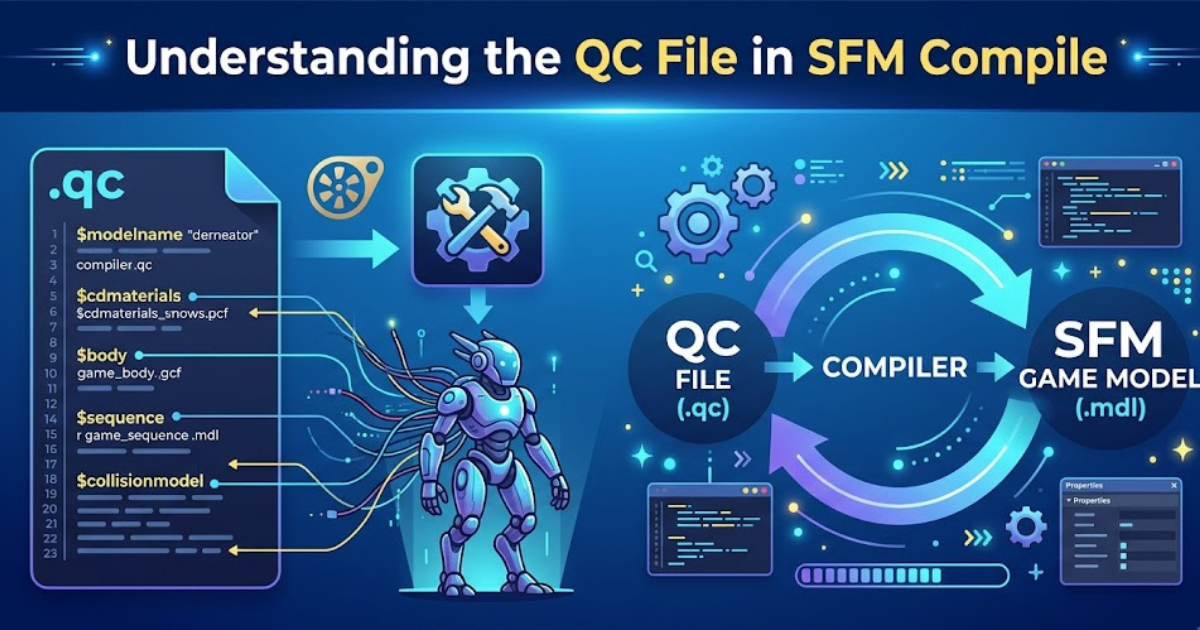
The QC file is the command script that tells the Source Engine’s compiler how to assemble your model. It defines the reference mesh, collision model, texture paths, bone hierarchy, sequences, and other critical parameters. Every successful SFM compile starts with a correctly structured QC file, since even minor syntax errors can cause the entire process to fail.
Learning QC syntax takes practice, but most creators start by studying existing QC files from similar models and adapting them. Key commands like $bodygroup, $sequence, $cdmaterials, and $collisionmodel each serve a specific function. Understanding what each line does—rather than copying blindly—makes troubleshooting future SFM compile errors far easier and faster.
Tools Required for a Successful SFM Compile
Before starting an SFM compile, you’ll need a few essential tools installed and configured correctly. Crowbar is the most popular compiling tool among the community, offering a user-friendly interface for decompiling and compiling Source models. You’ll also need Source Filmmaker itself, along with a properly set up Source SDK for certain advanced tasks.
In addition to compiling software, a 3D modeling program such as Blender with the Source Tools plugin is essential for exporting SMD or DMX files. Notepad++ or a similar text editor helps when manually editing QC files. Having these tools organized in a consistent folder structure prevents path errors during the compile process.
The Step-by-Step SFM Compile Workflow

The typical SFM compile workflow begins with preparing your model in a 3D suite, ensuring proper UV mapping, bone weighting, and a clean topology. Next, you export the reference mesh and any additional sequences as SMD or DMX files, along with a simplified collision mesh if physics interaction is required for the finished asset.
Once exports are ready, you write or edit the QC file to reference these files correctly, specifying material paths and body groups. Running the QC through Crowbar or the Source SDK compiler generates the final MDL, VVD, and VTX files. Placing these into the correct SFM model directory completes the SFM compile process.
Common SFM Compile Errors and How to Fix Them
One of the most frequent issues creators encounter during SFM compile is the dreaded “missing texture” or purple-and-black checkerboard error, usually caused by incorrect material paths in the QC file. Double-checking your $cdmaterials directive and confirming VMT files exist in the specified folder typically resolves this problem quickly.
Another common error involves bone mismatches, where an imported skeleton doesn’t align with SFM’s expected hierarchy, causing distorted poses. Missing or malformed collision models can also halt compiling entirely, throwing cryptic error messages in the compiler log. Reading these logs carefully, line by line, is the fastest way to isolate and correct the specific mistake causing your SFM compile to fail.
Best Practices for a Clean SFM Compile
Consistency is one of the most valuable habits for anyone doing regular SFM compile work. Keep a standardized folder structure for models, materials, and QC files so that path references stay predictable across projects. Naming conventions matter too—clear, descriptive filenames make it far easier to locate and fix problems later on.
Testing incrementally is another smart practice: compile early and often rather than waiting until the entire model is finished. This way, if an SFM compile error appears, you can pinpoint exactly which addition caused it. Backing up working QC files before making changes also protects you from losing a functional setup during experimentation.
Conclusion
Mastering SFM compile takes patience, but understanding QC files, required tools, and the overall workflow makes the process far less intimidating. By following a structured approach—proper exports, careful QC scripting, and incremental testing—you can avoid the most common errors that trip up beginners. With practice, compiling custom models for Source Filmmaker becomes a reliable, repeatable part of your creative pipeline.